
Before you start
You'll need Manager permissions. If a staff member isn't on Klayo yet, you can create their account here as part of enrolling them. See Invite staff to Klayo.
Find the course
- In the left menu, select Manage, then Training.
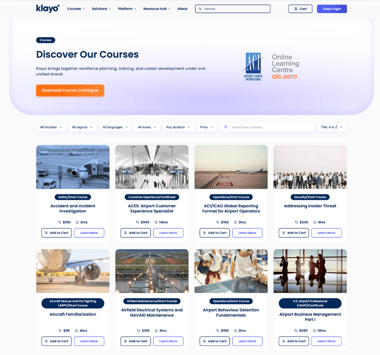
- On the Courses tab, use the Search box, Filters, or Course finder to find the course you want.
- Select the course to open its detail page, where you can review the description, content, price, and completion time.
Enroll your staff
- Select Enroll students. The Enroll students page opens with your chosen course already added under Courses.
- Under Students, select the staff you want to enroll. To add someone who isn't on the platform yet, select Create and enter their name and email. They're added to your organization right away, so you can enroll them in the same step.
As you add courses and students, the Your selection panel updates the course count, student count, total enrollments, and total cost.
Pay with balance or purchase separately
Choose how to pay:
- Use available balance draws down your organization's prepaid balance. This option is only available when you have enough balance to cover the cost.
- Purchase separately keeps your balance for later and pays for these enrollments on their own.
To purchase separately, select Add to cart. You're taken to the cart to complete the transaction.
Once payment is processed, the course becomes available in each student's account after our team processes the enrollment, within 24 to 48 hours.
Tip: You can also reach the Enroll students page directly from the Students tab, then select Enroll students.