
Before you start
Once you're enrolled in a course, you'll receive an email notification letting you know it's ready.
Log in to My Klayo
- Go to klayo.com and select Klayo Login in the top right.
- Sign in to reach your My Klayo dashboard.

Find your courses
Select the My Courses tab to see all your courses. To narrow the list, use the filters at the top: All courses, Not started, In progress, or Completed.
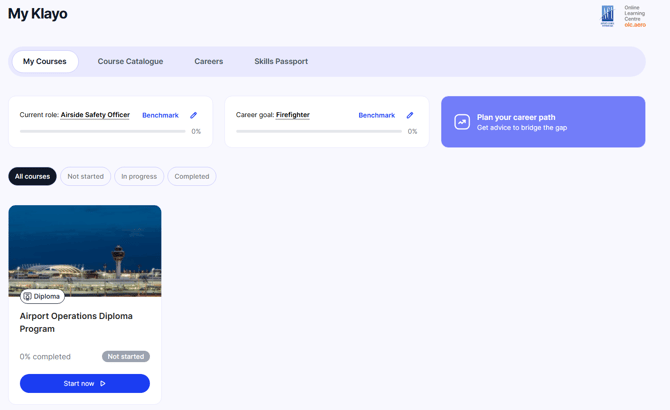
Start or resume a course
Each course shows a button based on where you're up to:
- For a course you haven't opened yet, select Start now.
- For a course already underway, select Resume to pick up where you left off.
- For a completed course you want to take again, select Relaunch.
How to move through the modules
After you select Start now, Resume, or Relaunch, you'll see the course overview. The modules are listed down the left, with your overall progress shown at the top.
- Select a module from the list, then select Launch to open it.
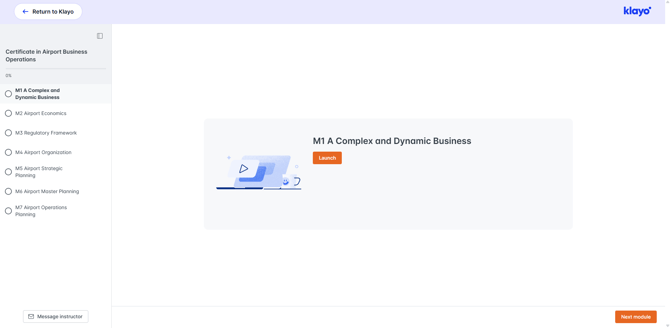
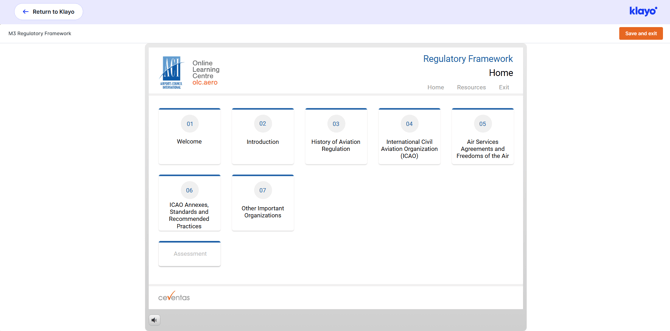
- Work through the sections in order. In a certificate course, the Assessment becomes available once you've completed the other sections.
Save your progress and exit
When you're ready to leave a course, save your work before you go, so you don't lose your progress.
- Inside the course, select Save and Exit.
- Select Return to Klayo.
- A message asks "Did you save your progress?". If you've saved, select Return to My Klayo. If you're not sure, select Stay on this page, use Save and exit first, then leave.
Complete a course
When you complete the final module and pass any assessments, the course updates automatically.
On the My Courses tab it moves to Completed, showing the date you finished, your Score, and a green Passed badge.
A skill is also added to your Skills Passport automatically.
At that point a View Certificate button appears on the course, and you can relaunch the course at any time to take it again. To save or print your certificate, see Download your certificate.