---
title: Add courses to your LinkedIn profile
description: Add the certifications you've earned to your LinkedIn profile.
---
[Skip to content](https://help.klayo.com/add-your-courses-to-your-linkedin-profile#main-content)
[](https://help.klayo.com/)
Open main navigation
Close main navigation
- [Contact Support](https://klayo.com/about#contact)
[Contact Support](https://klayo.com/about#contact)
How can we help you?
- There are no suggestions because the search field is empty.
1. [Knowledge Base | Klayo](https://help.klayo.com/)
2. [Learning & Courses](https://help.klayo.com/learning-courses)
3. [Complete a course](https://help.klayo.com/learning-courses#complete-a-course)
# Add courses to your LinkedIn profile
## Add the certifications you've earned to your LinkedIn profile.
---
### Before you start
You'll need a completed course and a LinkedIn account. Completing a course creates a badge in your **Skills Passport**, which is what you share to LinkedIn.
---
### Make your skill public
For your certificate to link correctly on LinkedIn, the skill needs to be visible on your public profile first.
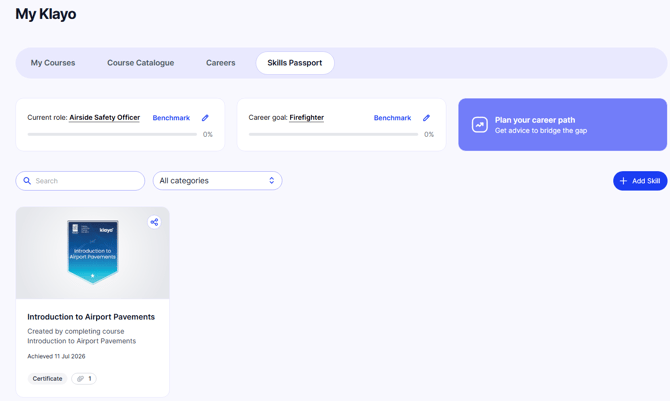
1. In **My Klayo**, select the **Skills Passport** tab.
2. Select the badge for the course you want to add to open the **View Skill** panel.
3. Turn on **Show in my public profile**.
4. Save your changes.
Making the skill public lets Klayo share the badge, so your LinkedIn certification includes a working link back to your credential.
### Share it to LinkedIn
1. On the badge, select the share icon.
2. Select **LinkedIn**.
3. Sign in to LinkedIn if you're prompted to.
### Check the details and save
LinkedIn opens an **Add license or certification** form with some details already filled in from Klayo, including the course name, the issuing organization, issue date, and the credential URL.
1. Review the pre-filled details and adjust the **Name** if you want to.
2. Under **Skills**, add at least one skill so the certification also appears in your profile's Skills section.
3. To attach your certificate, select **Add media** under **Media** and upload it. To download your certificate first, see [Download your certificate](https://help.klayo.com/download-your-certificate).
4. Select **Save**.
Your certification now appears in the **Licenses & certifications** section of your LinkedIn profile.
---
- [Get started](https://help.klayo.com/get-started#main-content)
- [Your account](https://help.klayo.com/get-started#your-account)
- [Free vs paid](https://help.klayo.com/get-started#free-vs-paid)
- [Learning & Courses](https://help.klayo.com/learning-courses#main-content)
- [Access training](https://help.klayo.com/learning-courses#access-training)
- [Complete a course](https://help.klayo.com/learning-courses#complete-a-course)
- [Your Career](https://help.klayo.com/your-career#main-content)
- [Skills Passport](https://help.klayo.com/your-career#skills-passport)
- [Career Explorer](https://help.klayo.com/your-career#career-explorer)
- [Managing People](https://help.klayo.com/managing-people#main-content)
- [Enrol students](https://help.klayo.com/managing-people#enrol-students)
- [Report](https://help.klayo.com/managing-people#report)
- [Pre-paid accounts](https://help.klayo.com/managing-people#pre-paid-accounts)
- [Workforce Solutions](https://help.klayo.com/workforce-solutions)
- [Accounts, Seats & Billing](https://help.klayo.com/accounts-seats-billing)
[](http://klayo.com)
Copyright © 2026, Ceventas Pty Ltd