
Before you start
You will need access to the email address on file with ACI OLC or CAOC. If you are not sure what the email address is, please contact enrolments@olc.aero for help.
Activate your account
Access the Sign Up page
-
From the email
Open the activation email from Klayo, sent to the email address registered to your OLC or CAOC account and click on Get Started.
-
From URL
Go to the sign up page.
-
From the Klayo website
Go to the Klayo website and click the Klayo Login button located in the top right corner.
Click Sign up at the bottom of the login screen.
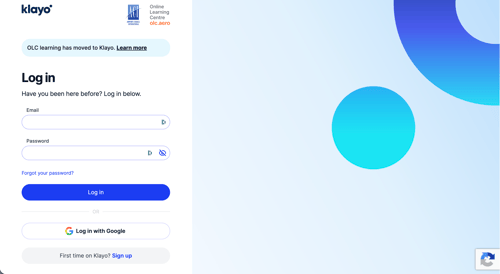
Create your account
-
-
Use the email address registered to your OLC or CAOC account. Contact enrolments@olc.aero if you need help.
- Set your password
- Click Join Klayo
-
Verify your details
- Verify your email address by entering the code that was sent to you.
- Login using your email address and password
- Add your phone number for two-factor authentication. A code will be sent to you via text message. Enter the code to access your new account.
Complete your profile
Current position
Use the search field to look for your current job title. If you can't find it, click "My role isn't listed". Knowing your role will help Klayo recommend training courses relevant to your position.
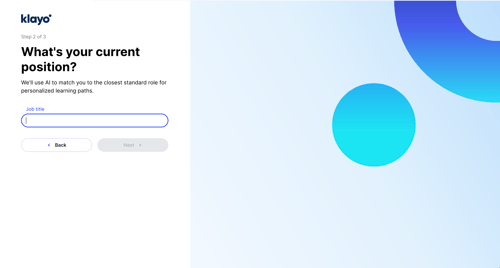
Your name and organization will be automatically filled based on your existing OLC or CAOC accounts. If any of your details look incorrect, please contact enrolments@olc.aero.